

Install
On mobiles, LAST can be installed as an app that will open without having to go through your phones browser and opens with one tap . Please see the video below to see what it looks like:
To install LAST, please follow the instructions below.
iPhone
While iOS allows third-party browsers like Chrome or Edge to add PWAs to the home screen, Safari remains the most reliable and standard browser for PWA installation on Apple devices.
Open Safari and navigate to letsallsingtogether.com .
Tap the Share button at the bottom of the screen (the icon looks like a square with an upward-pointing arrow).
Scroll down the share sheet menu until you find "Add to Home Screen" and tap it.
A screen will appear showing the LAST's icon and name. You can customize the name of the app shortcut if you want to.
Tap "Add" in the top-right corner.
Safari will immediately close, and the web app's icon will appear right on your iPhone's home screen.
Android
Google Chrome is the recommended browser for Android, though other modern browsers like Edge, Brave, or Samsung Internet follow a very similar process.
1) Open Google `chrome and navigate to LAST.
Tap on the install logo at the top of LAST. There is also an install button at the bottom of the page.
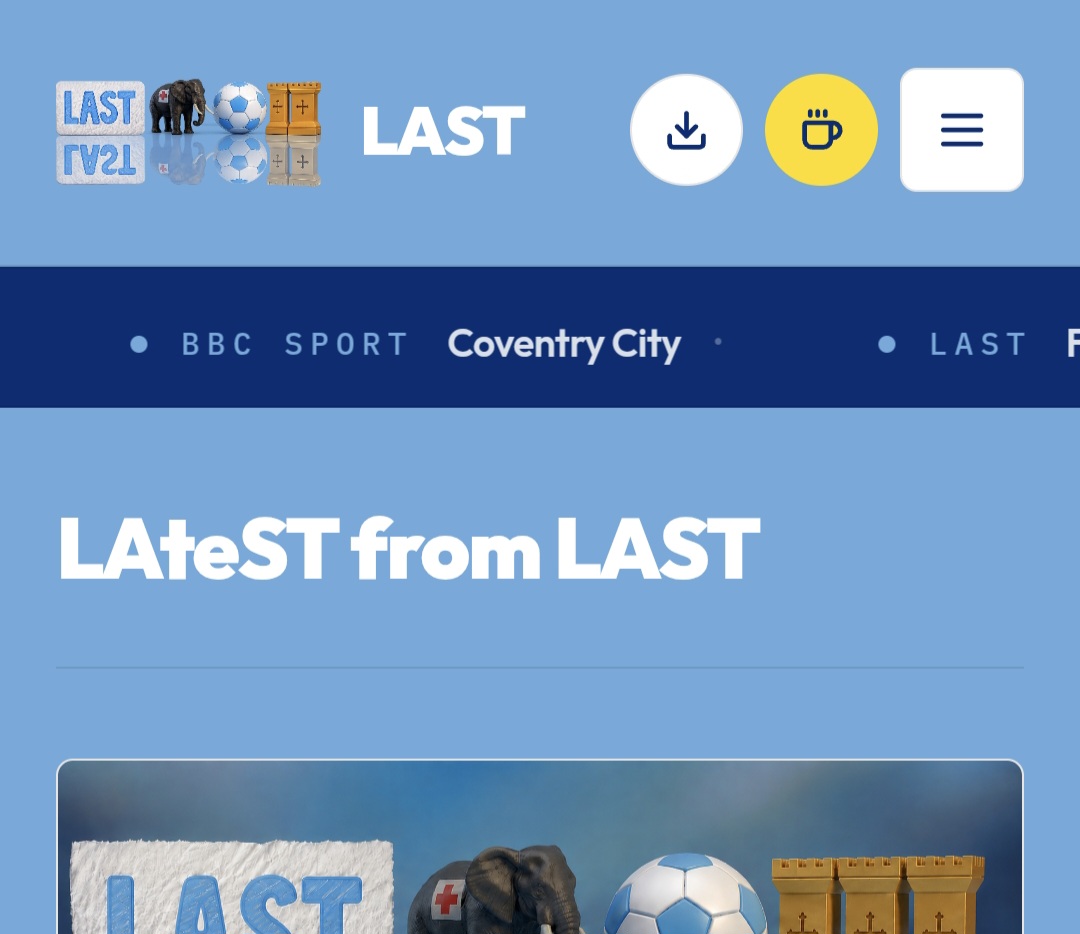
2) You should get an install prompt, if so just press install.
Alternatively you may get this prompt:
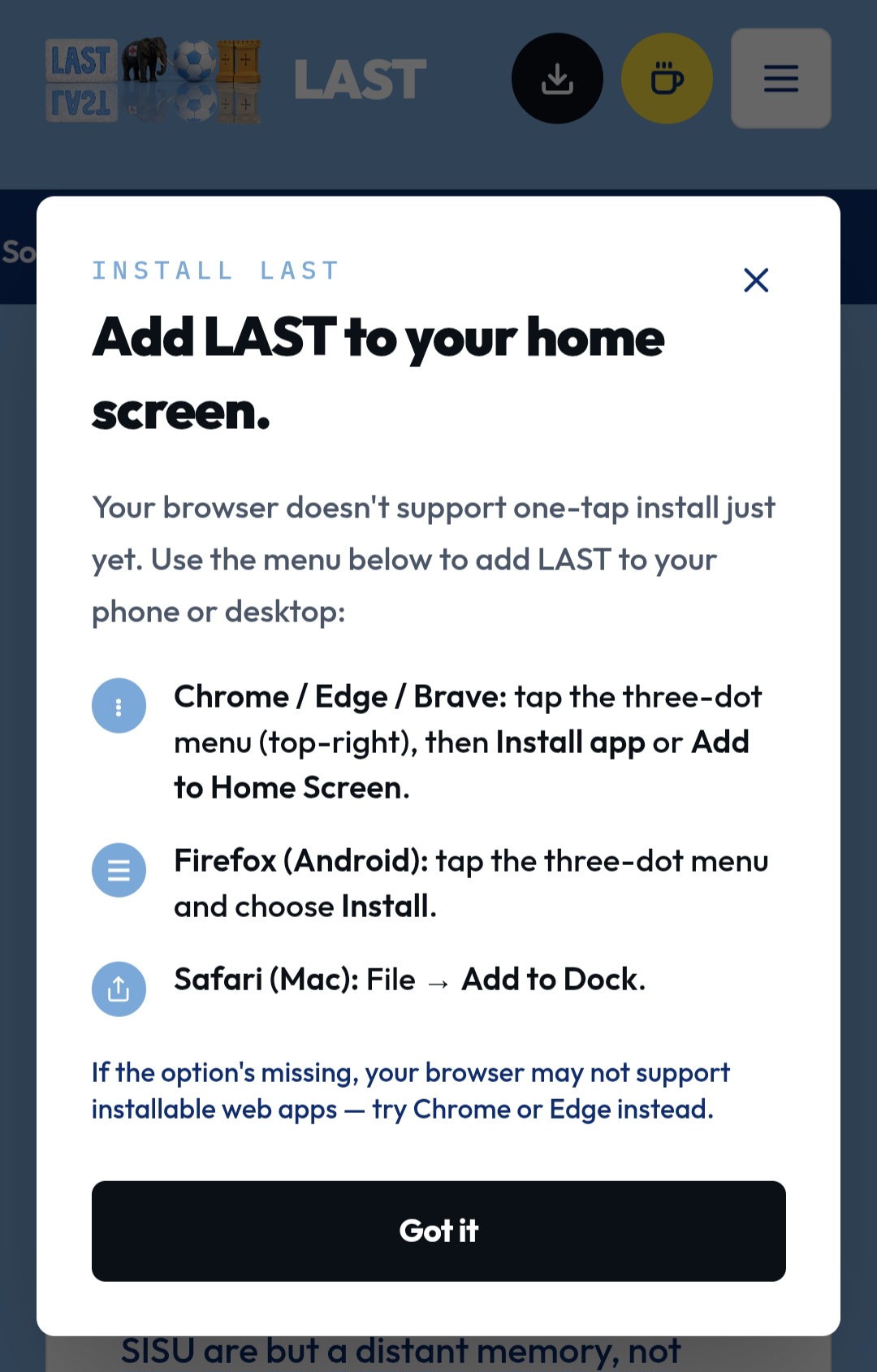
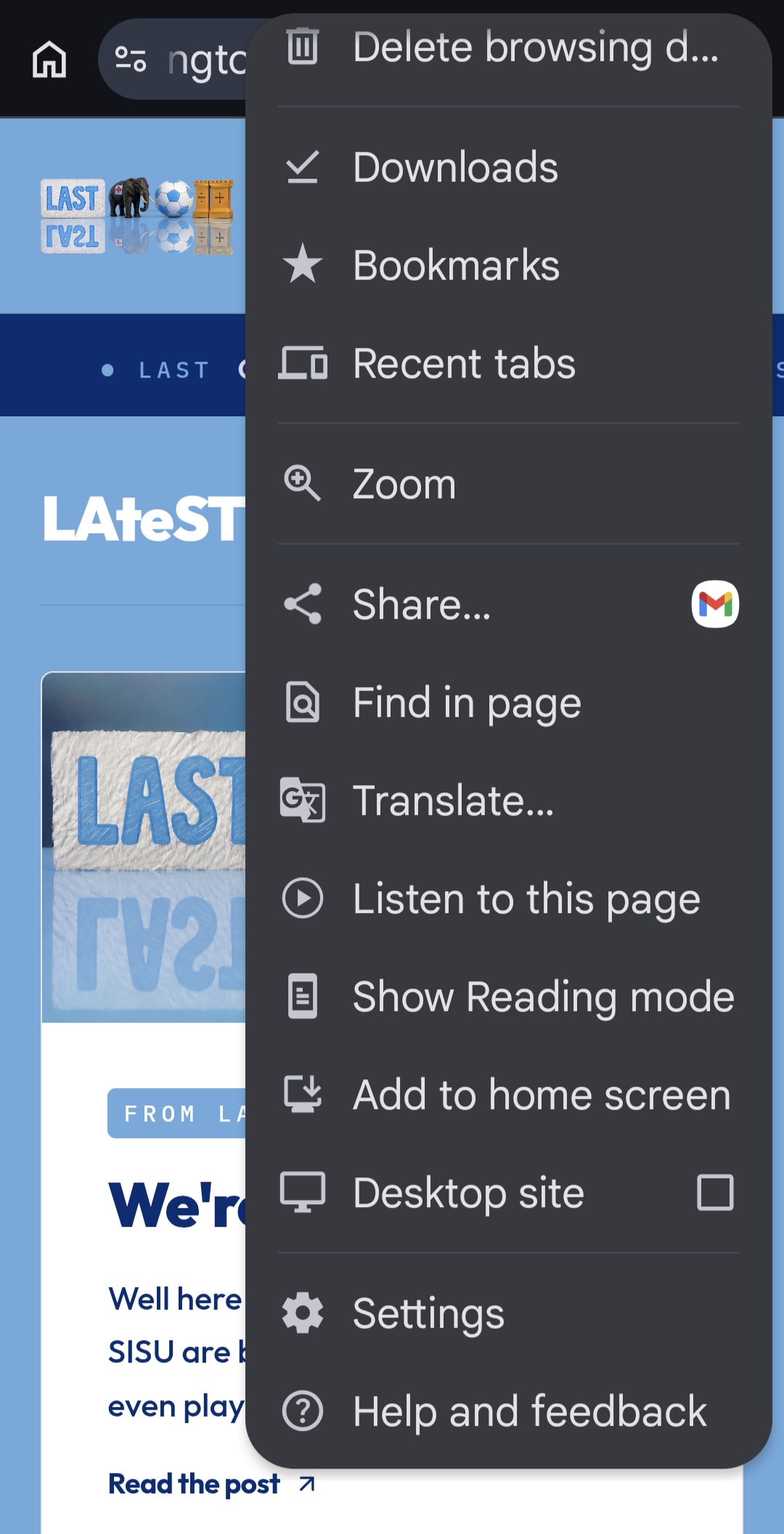
3) You will most likely have to tap the 3 dot menu in the top right corner. Tap on Add to Home Screen, 3 from bottom in the image below. A confirmation dialog will pop up showing the app's icon. Tap "Install" or "Add".
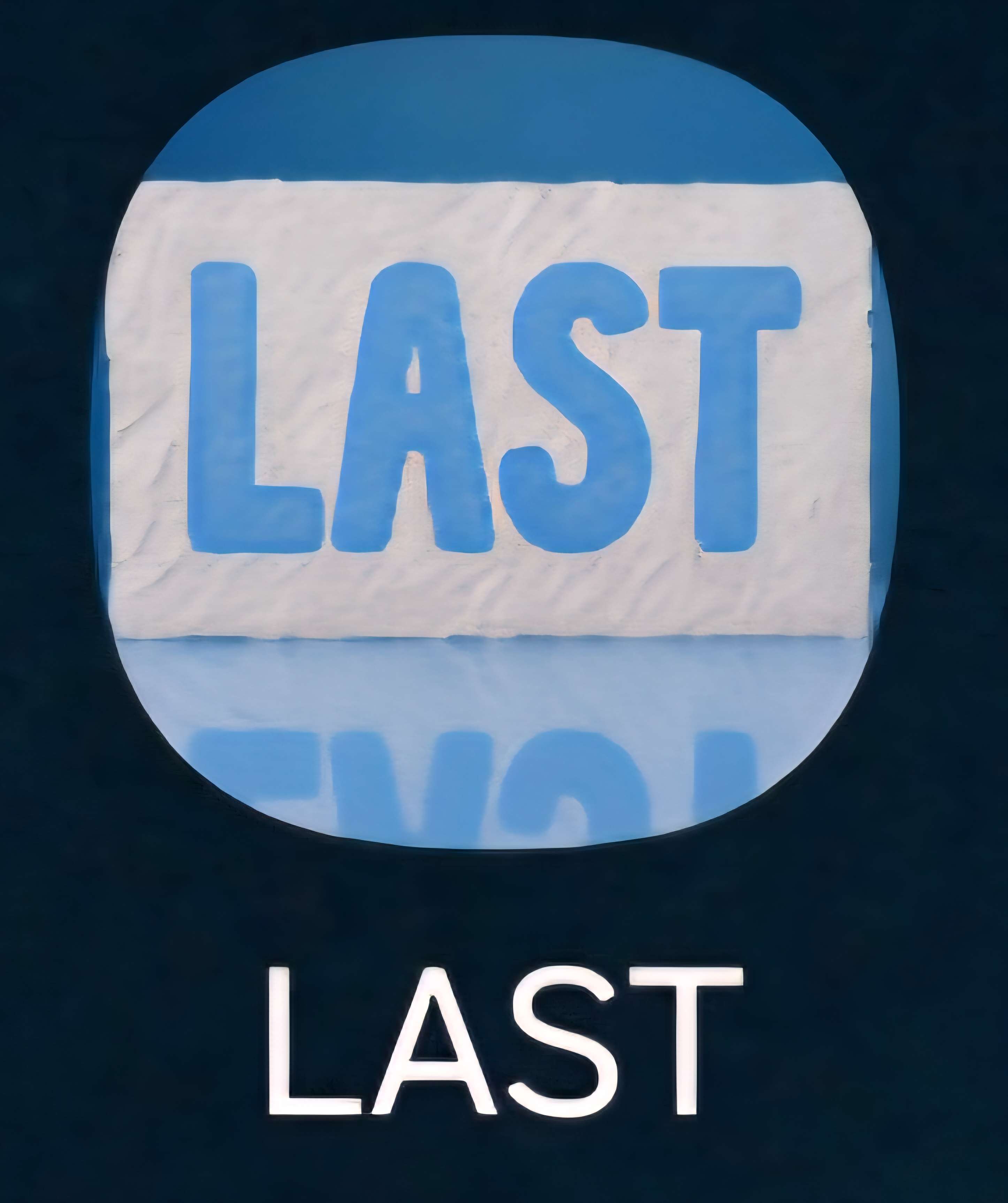
3) You should hopefully then have the icon below on your homes screen which will open LAST.
Please message if you have any issues!